> For the complete documentation index, see [llms.txt](https://infinitypbr.gitbook.io/magic-pig-games/llms.txt). Markdown versions of documentation pages are available by appending `.md` to page URLs; this page is available as [Markdown](https://infinitypbr.gitbook.io/magic-pig-games/juicy-actions/quick-start-and-demos/super-quick-start-tutorial.md).
# Super Quick Start Tutorial
v1.0
{% hint style="info" %}
The tutorials were first made during development. The UX is improved, and may be slightly different in some cases, but should be similar enough. The video and written UX may differ.
{% endhint %}
In this quick start tutorial we'll add actions to a primiative in the scene. This will demonstrate how to quickly add Juicy Actions to your project. The video corresponds to the written instructions.
{% embed url="" %}
## Scene Setup
Create a new URP scene — we will make the little Unity Ball move using Actions. Turn off "Static" on this object, in the top right of the Inspector.
## Add an Action Runner
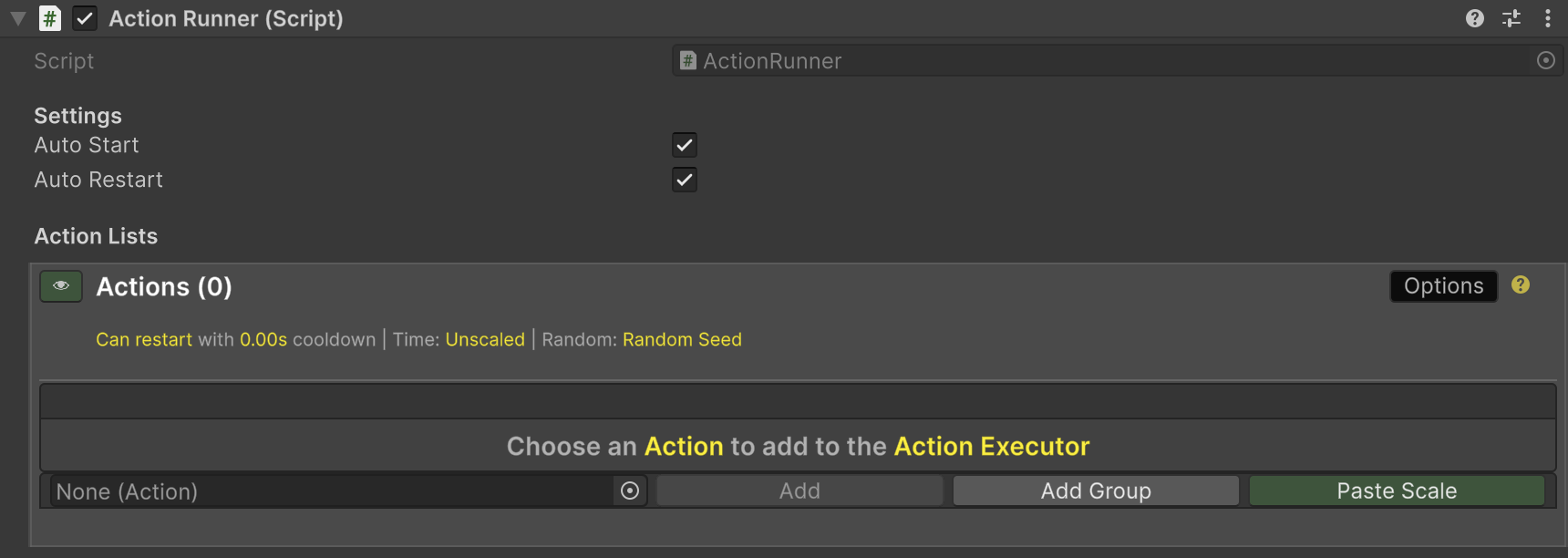
Add an `ActionRunner` component to the UnityMaterialBall\_Gold. The **Action Runner** class contains an Action Executor, and will automatically execute the actions, restarting them when they complete.
## Add an Action
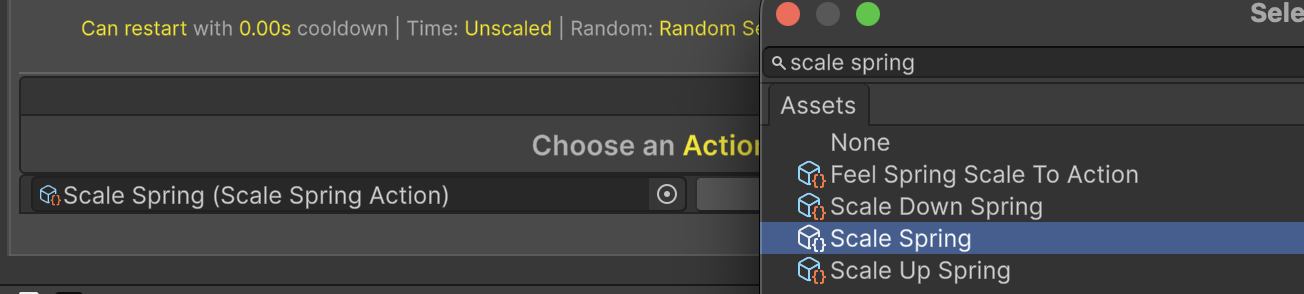
In the "Actions" list, select an Action in the object field: `Scale Spring`. This action scales a `Transform` with a "Spring" feeling.
Once added, click the "Eye" icon to expand the Action. Most actions have a "Simple" mode which displays the most common values you may want to override. You can toggle it off to see all options. "Simple mode" is a UX convenience only — it does not turn off the settings you have in other fields.
## Configure the Spring Scale Action
Now adjust the settings for this action. By default, all overrides are toggled off, and the settings on the Scriptable Object will be used. Toggle on the override for *Target Scale* by clicking the circle on the left. The field name will turn yellow, indicating the override value will be used.
Set the value to `2, 2, 2`.
Click the "Clock" button and allow the Action to determine how long before the following action is triggered.
{% hint style="warning" %}
The "Time Before Next Action" is NOT the same as the duration of an action that occurs over time.
"Time Before Next Action" determines how long after this action starts before the next action in the list will begin. If the value in this section is `0`, the next action will execute immediately after this one.
{% endhint %}
## Duplicate the Spring Scale Action
Click the "*D*" button to dupcliate this action. The "*C*" button will copy the action into your clip board, allowing you to paste it into any other Action Executor in your project, retaining the settings.
Expand the new action, and set the "Target Scale" values to `0.5, 0.5, 0.5`. Since the *Scale Mode* is set to *Percentage*, these actions will double the scale, then reduce it by half, to the starting value.
{% hint style="info" %}
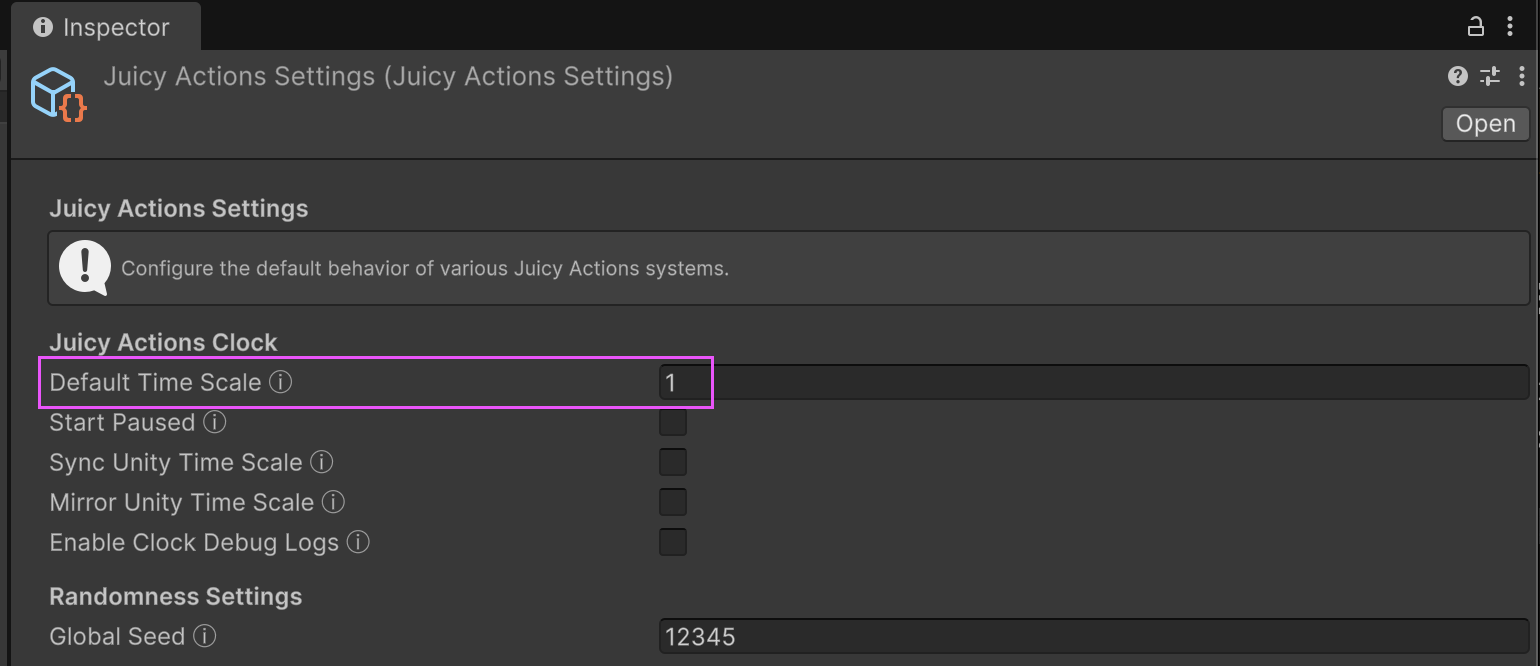
The JuicyActionsSettings object in the Project has a default time scale option. Make sure this is set to `1`.
{% endhint %}
## Press Play to Test
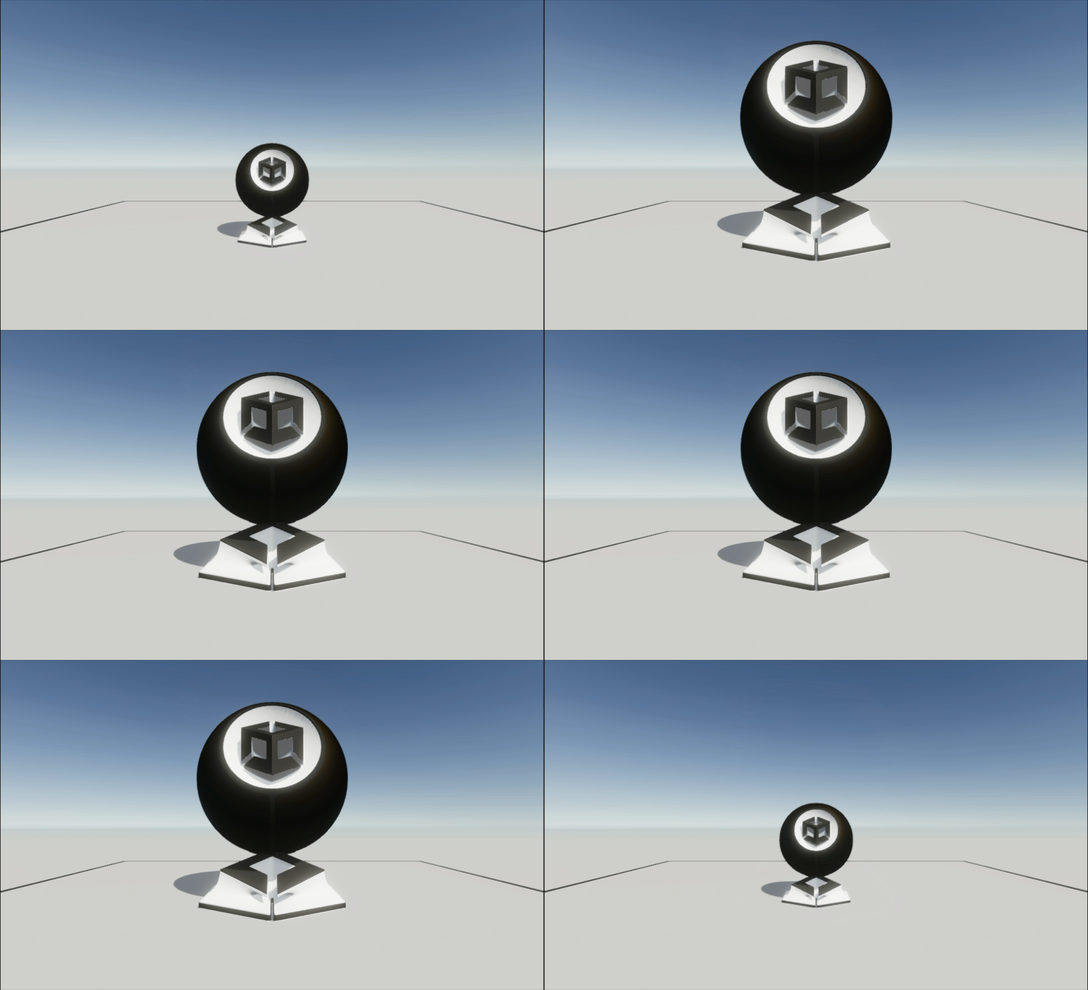
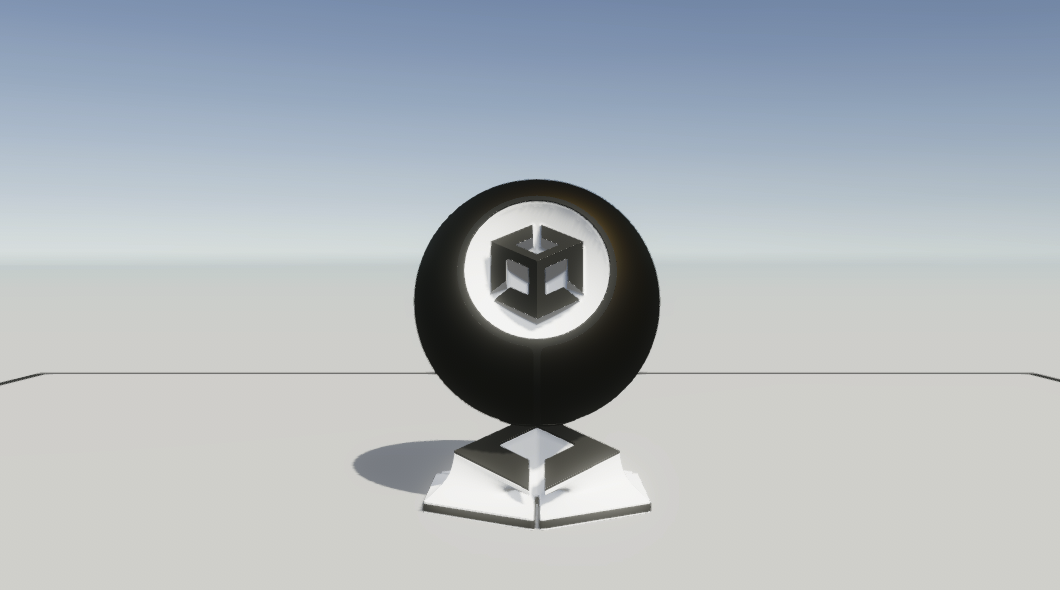
For this GIF, I set the timing to 1 second between actions.
Now our object will scale with a "Spring" forever!
## Slightly More Advanced Logic
Next, we'll create a custom class with an `ActionExecutor` that will move the object within a set area. This will also demonstrate how to inject data into Actions at runtime.
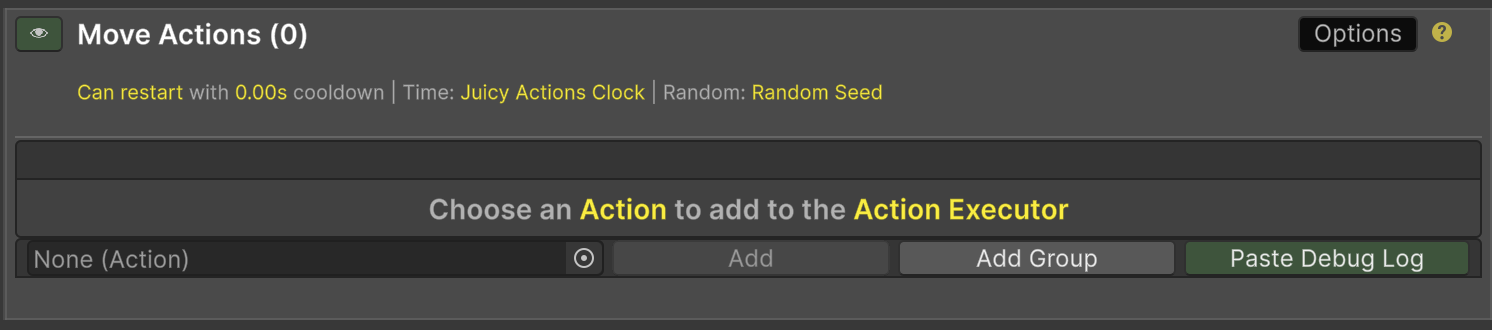
Create a class called `JuicyQuickStart`, and expose an `ActionExecutor`. Add this to the Cube in the scene.
```csharp
using MagicPigGames.JuicyActions;
using UnityEngine;
public class JuicyQuickStart : MonoBehaviour
{
public ActionExecutor moveActions;
}
```
In the Inspector, we can see the Action Executor ready to go. Set the "Time" option to "Unscaled" or "Unity Time".
## Add a Move action
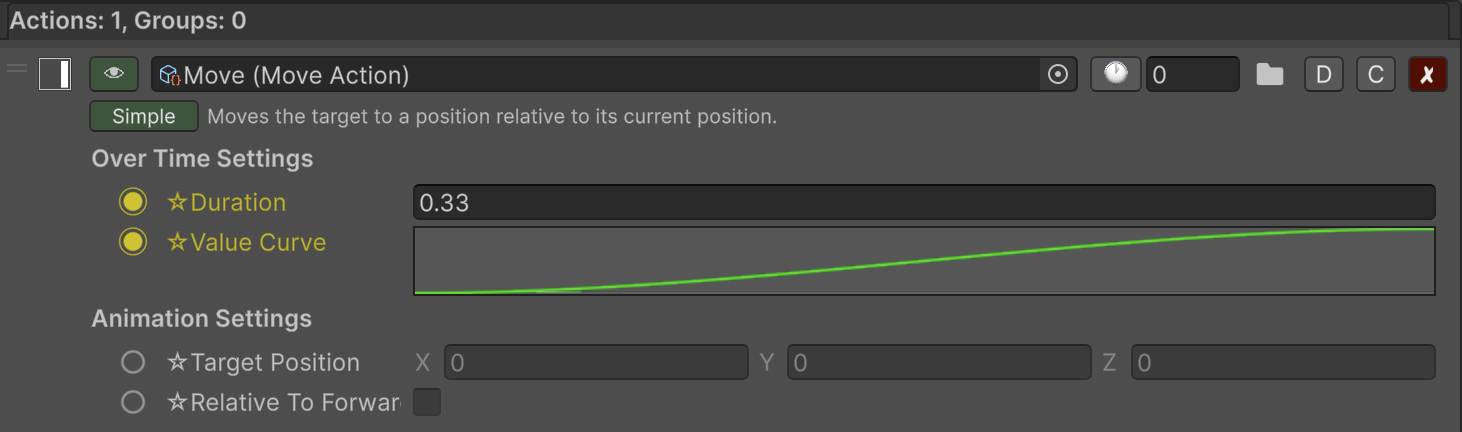
Add a `Move` action to the `ActionExecutor`. This action moves a transform over time. (or instantly, if you'd like).
Override the optoins in the "Move Settings" section as shown. Set the "Move Duration" to `0.33`, and the Target Position to `0, 0, 0`. We will be setting this at runtime via code.
Choose a Move Curve that starts at `0` and ends at `1`, which represents the start position (0) and Target Position (1). Finally, set Use Relative Position to `false`.
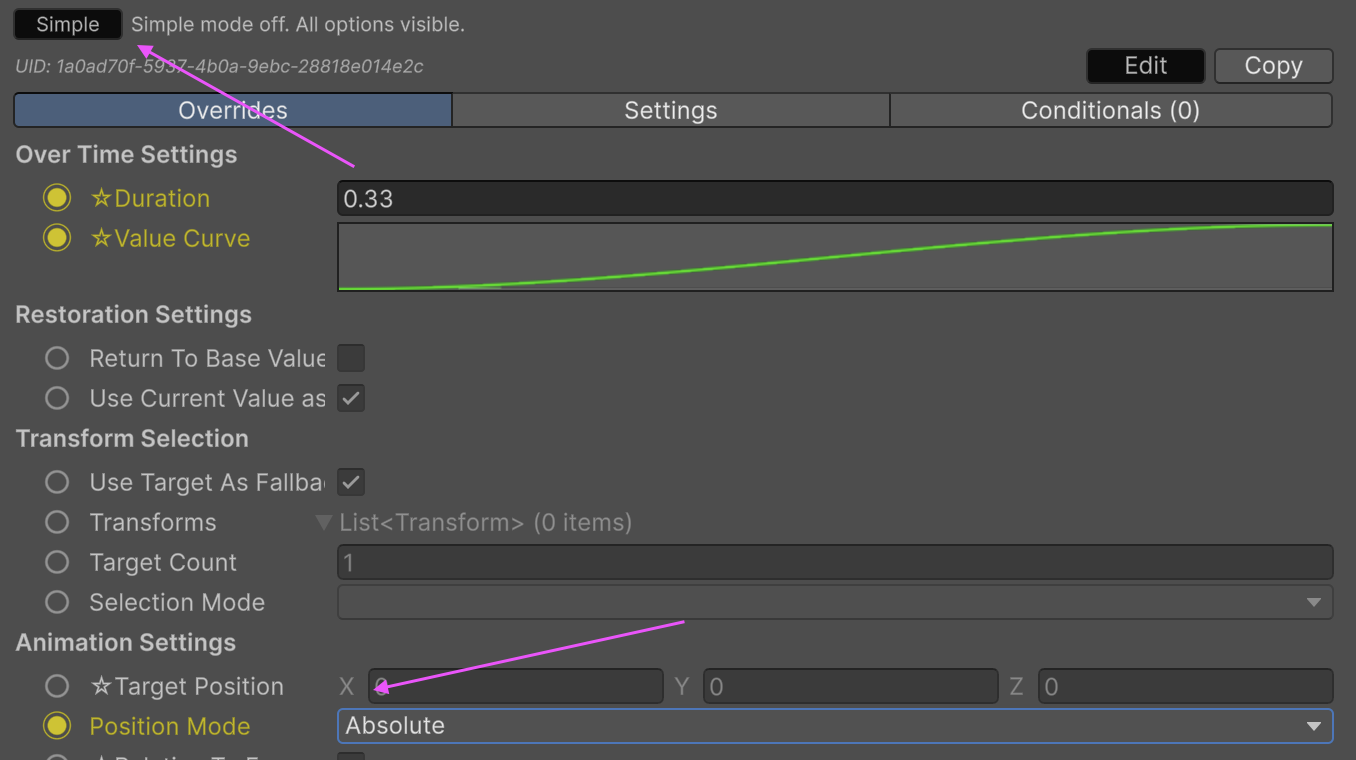
Next, toggle off "Simple Mode", and override the *Position Mode* to be *Absolute*. That way the object will move to the exact position in world space. We will be setting this position later with code.
## Set a Bounding Area in the Scene
In the Scene, create a new Cube called "Bounding Area", and set the scale and position so that it fills most of the cameras view point. Then, remove the Mesh components from the cube. This will define the area that our Demo Cube may move to. Only a `BoxCollider` will be left on the object.
Add a reference to the `BoxCollider` component to your class, along with a `KeyCode` that determines the key we'll press to make the object move.
```csharp
public class JuicyQuickStart : MonoBehaviour
{
public BoxCollider boundingArea;
public ActionExecutor moveActions;
}
```
Next we'll code a simple method to find a position within the area, and a method to move the object. Pay attention to the `Move()` method, which calls the `Execute()` method on the `ActionExecutor`.
```csharp
public void Move()
{
// ... We will populate more here
moveActions.Execute(this); // This starts the ActionExecutor!
}
public Vector3 RandomPointInBox()
{
var min = boundingArea.bounds.min;
var max = boundingArea.bounds.max;
return new Vector3(
Random.Range(min.x, max.x),
Random.Range(min.y, max.y),
Random.Range(min.z, max.z)
);
}
```
## Inject Data into the Action
We need to set a new `RandomPointInBox()` result in the `Move` action on the `moveActions` `ActionExecutor`.
We can do this with the `SetFieldOverride()` method. We will specify the `MoveAction` action, and we can see in the Inspector this specific field is called "*Target Position*", so we will set the `fieldName` parameter to `targetPosition`.
```csharp
public void Move()
{
var newPosition = RandomPointInBox();
// Set the MoveAction value of "Target Position" to newPosition (Vector3)
moveActions.SetFieldOverride("targetPosition", newPosition);
moveActions.Execute(this); // This starts the ActionExecutor!
}
```
This is fine when there is only one `MoveAction` in the `ActionExecutor`. If there are more, we can use the `uid` value on the `Action` in the `ActionExecutor` list to specify which `Action` we are overriding.
Click the "Copy" button to copy the UID to your clipboard, then set the value directly in the `SetFieldOverrideByUID()` method.
```c#
// Set the MoveAction based on it's UID (You will need to change the value in your project)
moveActions.SetFieldOverrideByUID( "81d4d090-70fe-4ce5-8e2e-cd7141622635", "targetPosition", newPosition);
```
By setting this before we call `Execute()`, the action will have an updated Target Position to use. This will be visible in the Inspector at runtime.
## Connecting the Keyboard
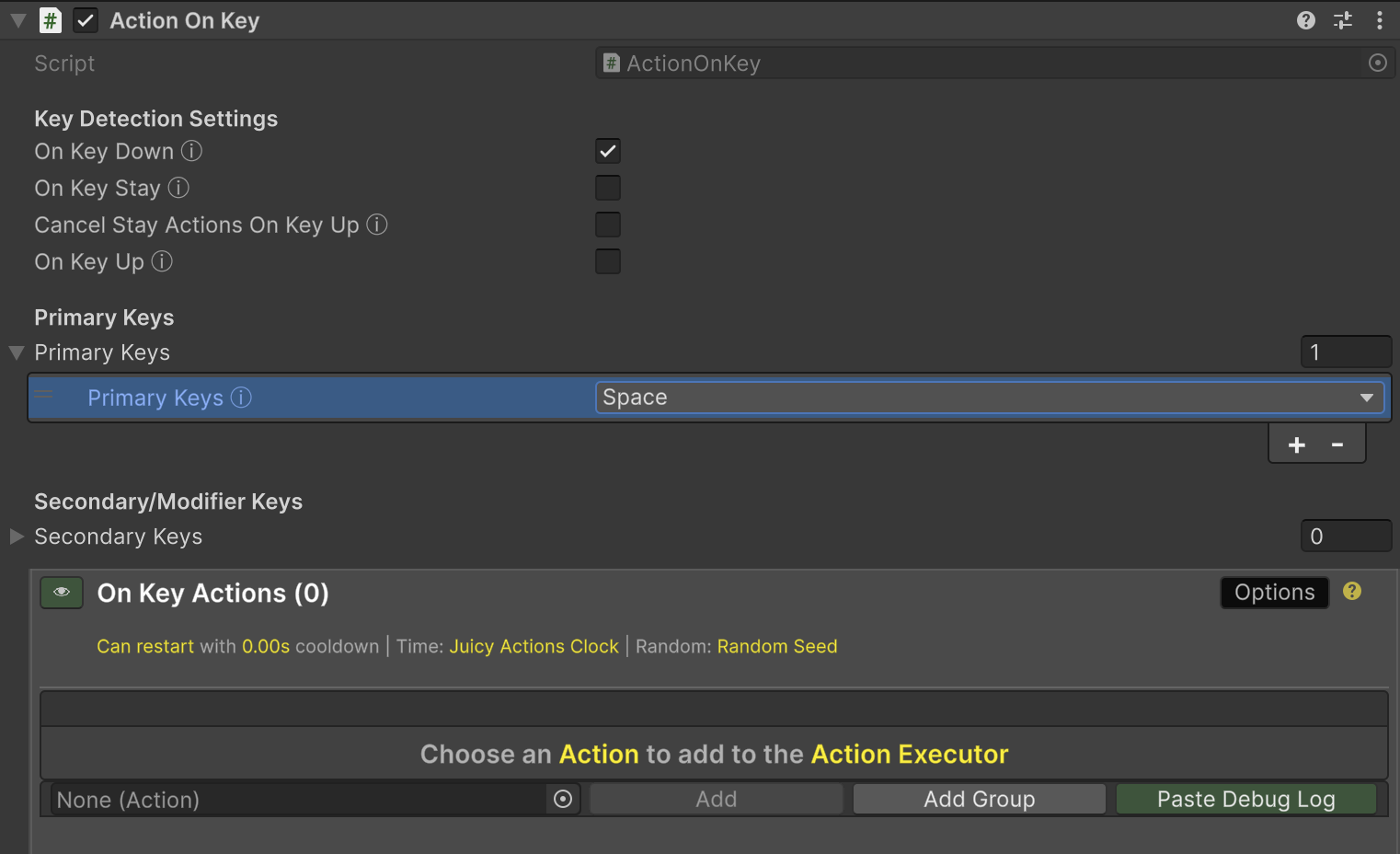
Add an `ActionOnKey` component as well, and choose the "*Space*" key.
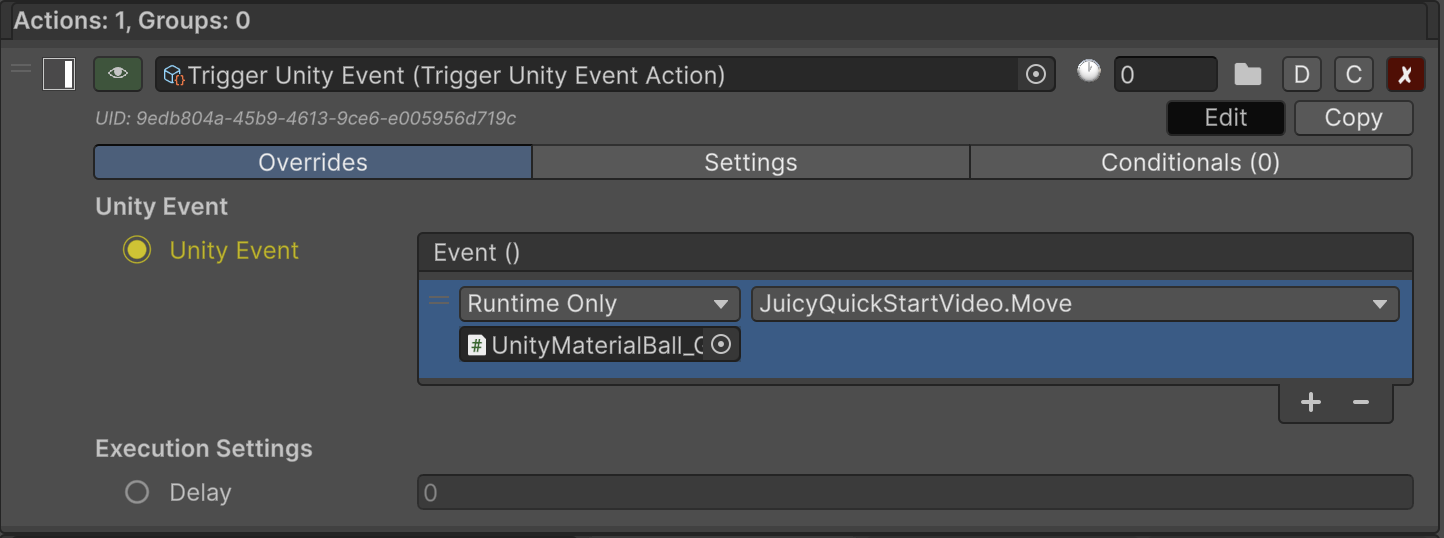
Add a `TriggerUnityEventAction` to the *On Key Actions* `ActionExecutor`. Override the *Unity Event* list and choose the `Move` method. Now when ever we press the *Space* key, this will call the `Move` method on the object.
## Press Play to Test
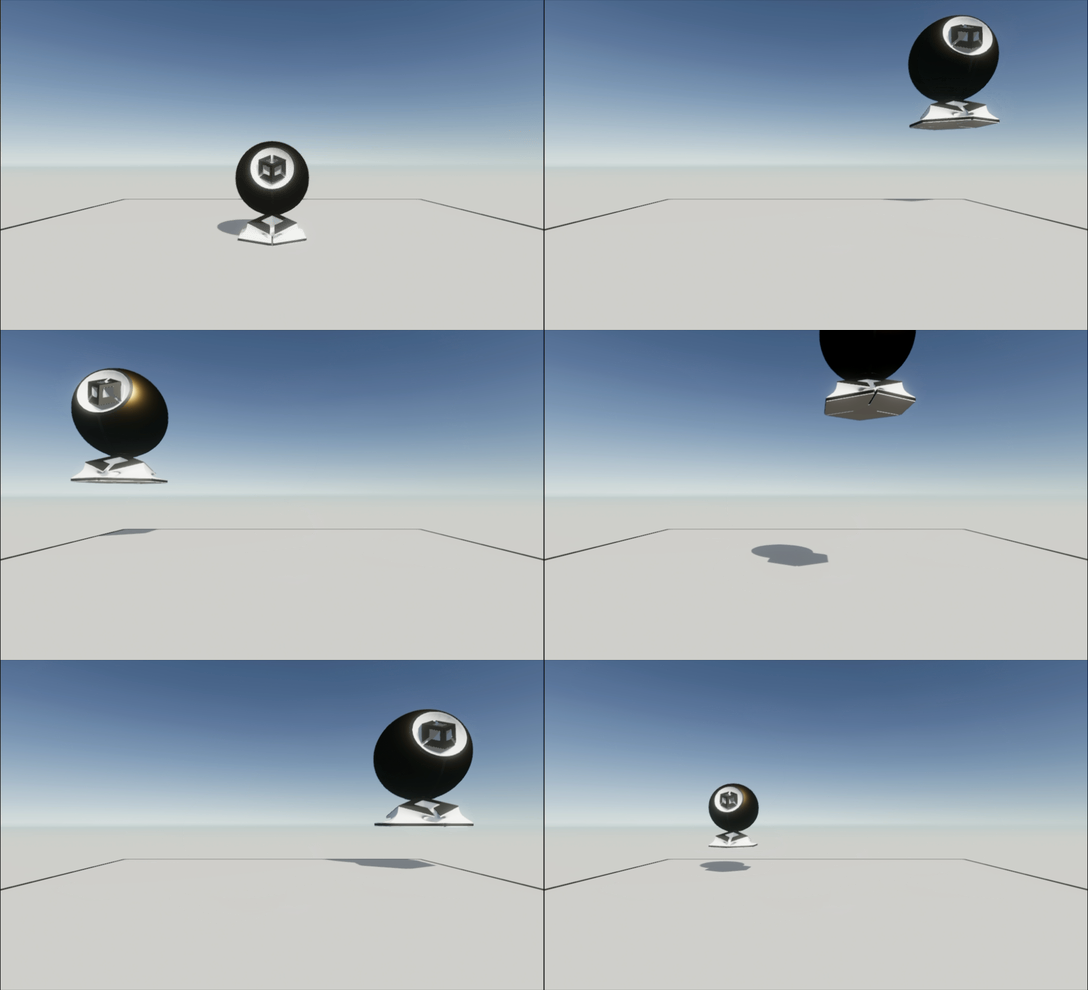
Now each time we press "*Space*", the cube will move to a new position. The `ActionRunner` continues to operate independently, scaling the cube up and down.
We could add more actions to the `moveActions` `ActionExecutor`. However we will end this quick tutorial here.
## Takeaway
I hope this short tutorial demonstrated how easy it is to quickly add actions to your project. **Juicy Actions** is able to add simple juice to objects, or engage in complex game logic.
You can even create custom Actions that are specific to your project. Dig into that more in the [**Follow Along Tutorial Game**](/magic-pig-games/juicy-actions/quick-start-and-demos/third-person-game-tutorial.md), which goes more in-depth using a prototype game project.
{% content-ref url="/pages/OGtuN4ftvPh10vDpQvld" %}
[Third Person Game Tutorial](/magic-pig-games/juicy-actions/quick-start-and-demos/third-person-game-tutorial.md)
{% endcontent-ref %}




 {% endhint %}
## Press Play to Test
{% endhint %}
## Press Play to Test