> For the complete documentation index, see [llms.txt](https://infinitypbr.gitbook.io/magic-pig-games/llms.txt). Markdown versions of documentation pages are available by appending `.md` to page URLs; this page is available as [Markdown](https://infinitypbr.gitbook.io/magic-pig-games/juicy-actions/juicy-actions-settings.md).
# Juicy Actions Settings
v1.0
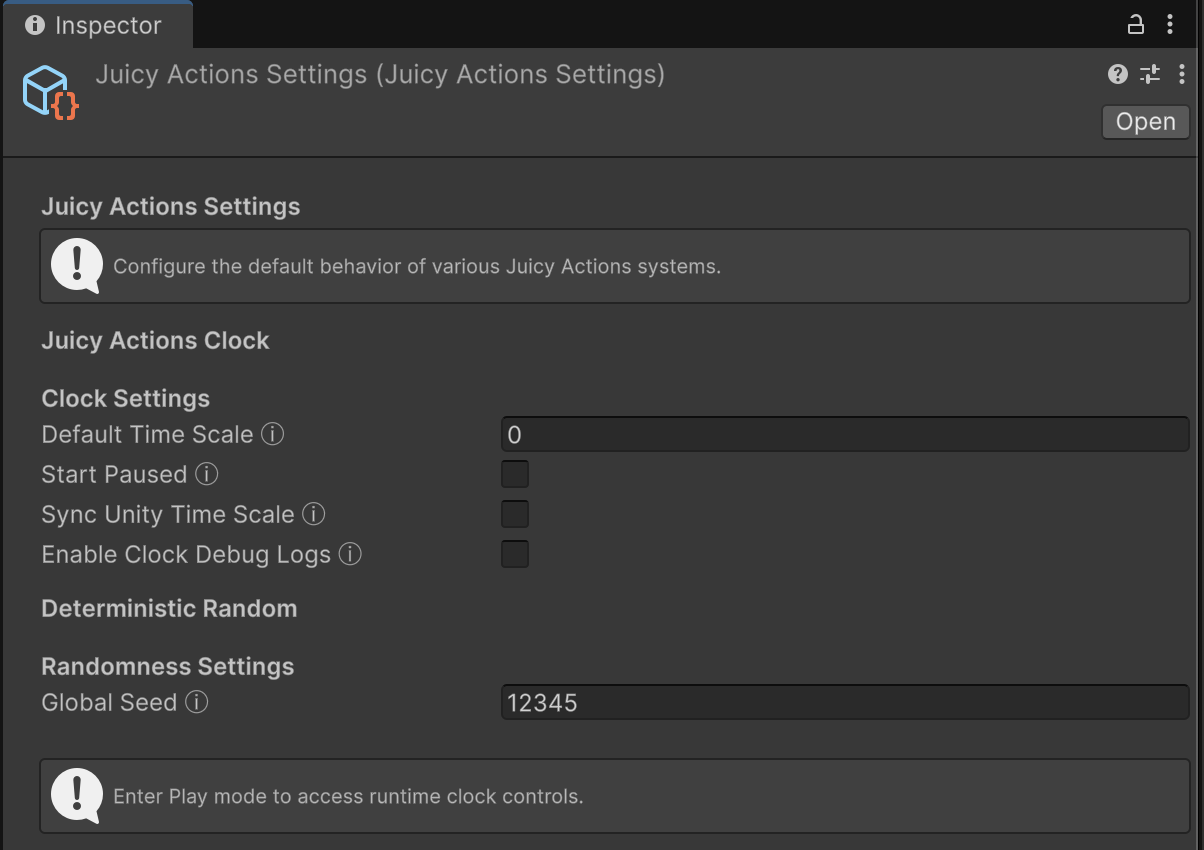
Select the `Tools/Juicy Actions/Settings` menu option to ping the existing file. If one does not exist, you will be given the option to create one.
The window contains default settings that you can customize for your project.
## Clock Settings
[Juicy Actions Clock](/magic-pig-games/juicy-actions/clock-and-time-scales.md) enables action to run on `timeScale` outside of the Unity `Time.timeScale`.
### Default Time Scale
You can set the `timeScale` that will be enabled when the game begins.
{% hint style="warning" %}
The demo scenes all expect the default `timeScale` to be set to `0`. Changing this will change how the demo scenes operate when they first load.
{% endhint %}
### Start Paused
When `true`, the game will start in the `IsPaused` mode — `timeScale` will still be set to whatever you choose.
### Sync Unity Time Scale
Enable this if you want `Time.timeScale` to be sync'd to the Juicy Actions Clock `timeScale`. This will also properly sync the `fixedDeltaTime` for physics.
The tradeoff is that you will no longer be able to decouple the two `timeScale` values.
{% hint style="success" %}
Best practice is to set `ActionExecutors` to use "Unscaled" time whenever you want them to run even when the game is paused. Very useful for UI elements.
{% endhint %}
### Enable Clock Debug Logs
This will turn on the `Debug.Log()` calls for the Clock.
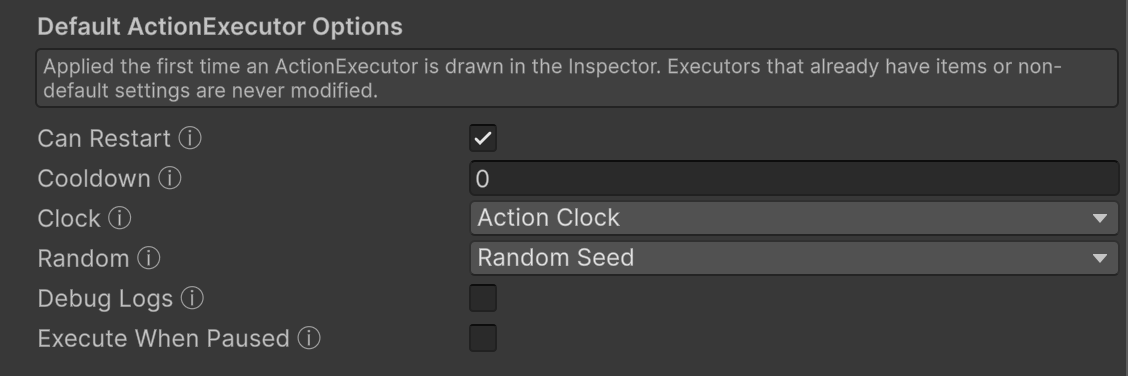
## Default Action Executor Settings
The options available in the `ActionExecutor` Inspector can be set to new default values based on your choices here. Changing the values in the Juicy Actions Settings file will only affect ActionExecutors which:
1. Have no Actions in their list
2. All settings at the C# default values
This means all new components with an `ActionExecutor` and all empty `ActionExecutors` in existing components.
## Deterministic Random
See the[ Deterministic Random](/magic-pig-games/juicy-actions/deterministic-random.md) docs for full details.
### Global Seed
Here you can set the *Global Seed* that will be used with the Deterministic Random feature.